
Engineering Custom Fabric Workloads: A Developer's Guide
- Home
- Blog
- Engineering Custom Fabric Workloads: A Developer's Guide
Engineering Custom Fabric Workloads: A Developer's Guide
The Microsoft Fabric Workload Development Kit enables customers to create tailored solutions that seamlessly integrate with the Fabric platform. The development kit enables customers to build custom workloads that offer specialized functionality and analytics for applications using the Fabric experiences.
In Microsoft Fabric, a ‘workload’ refers to a component that adds specific services or capabilities to the platform. For example, Data Factory, Data Warehouse, Power BI, and Data Activator are some of the existing workloads in Fabric. By developing your own workload, you can enhance the user experience and increase visibility of your applications in the Fabric Data Hub, and potentially create new revenue streams.
The workload development kit equips you with the necessary tools to design, develop, test, deploy, and manage custom workloads. You can define the metadata, configuration, permissions, and lifecycle of your workloads, while also managing communication and integration with the Fabric platform. This kit also helps monitor, troubleshoot, and update workloads as needed.
Microsoft Fabric Architecture
Your workload utilizes Microsoft Entra ID for authentication, using the On Behalf Of (OBO) authentication mechanism. This setup allows users or administrators to grant your application the required permissions through Entra ID, based on the scopes defined in your Entra ID application configuration.
Additionally, this integration supports real-time debugging with Microsoft Fabric, synchronized with your local Integrated Development Environment (IDE) for both front-end and back-end development tasks. By connecting to a Fabric capacity in development mode, you can register your workload with Fabric, monitor code execution, and view outputs, improving both debugging and development efficiency.
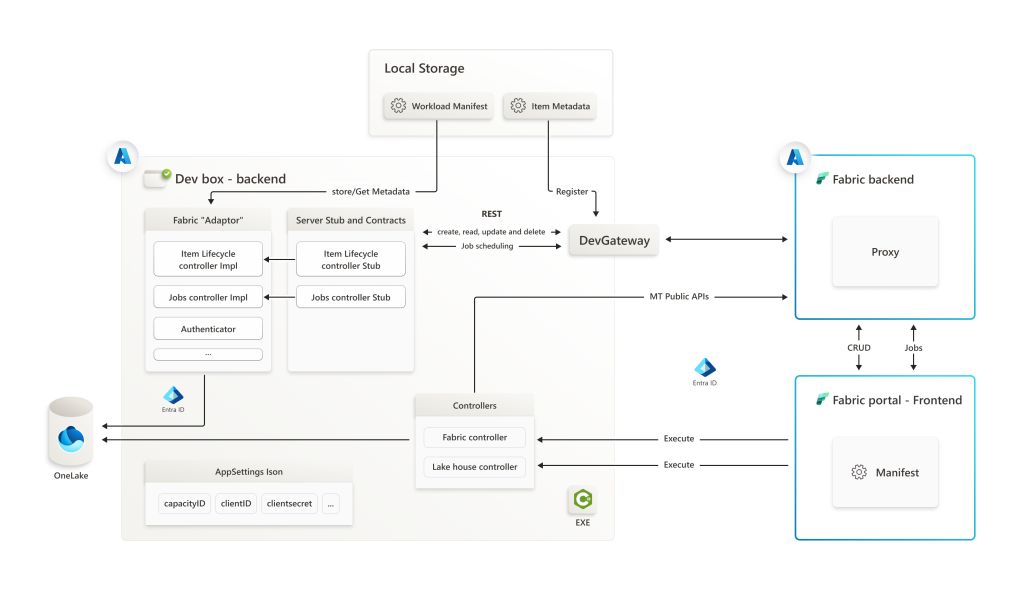
Image 1: Microsoft Fabric Architecture
This diagram illustrates how a Dev Box backend interacts with Microsoft Fabric. The backend manages workload lifecycle, jobs, and authentication through the Fabric Adapter and communicates with the Fabric backend via the DevGateway. OneLake is used for data storage, while Microsoft Entra ID handles authentication across components.
Frontend
The Frontend UX Workload is a standard web application that integrates custom UI components and behaviors into Fabric. Using the Extension Client SDK (an NPM package), it operates within an IFrame in the Fabric portal, providing smooth embedding and operation. This SDK offers interfaces, APIs, and bootstrap functions to transform a regular web application into a Micro Frontend app, functioning seamlessly within Fabric. Development is best achieved with React and Fluent UI for a consistent look and feel aligned with Fabric's design.
Backend
The backend system manages data and metadata using CRUD operations to create workload items and execute jobs that populate storage. It facilitates communication between the frontend and backend via public APIs, designed for seamless data integration and relationship management within database environments.
Workload Item Lifecycle
Microsoft Fabric Lifecycle Management facilitates structured development processes, ensuring robust and secure environments. Here’s a comprehensive overview based on the provided reference:
Key Concepts
1. Development in Isolation:
o Private Workspace: Developers work in a dedicated, isolated environment, allowing for experimentation and testing without affecting production data.
o Security and Privacy: This approach ensures sensitive data and production environments remain secure and private.
2. Lifecycle Stages:
o Development: Initial phase where code and features are created in an isolated workspace.
o Testing: Features are tested in the private workspace to identify and fix issues before moving to the next stage.
o Deployment: Successfully tested features are deployed to a staging environment and, subsequently, to production.
3. Version Control:
o Source Control Integration: Utilizes tools like GitHub for managing version control, ensuring that changes are tracked and can be reverted if necessary.
o Branching Strategies: Adopts strategies such as feature branches and pull requests to manage development workflows.
4. Environment Management:
o Configuration Management: Different environments (development, staging, production) have specific configurations to match their respective requirements.
o Infrastructure as Code: Uses scripts and automation to manage and provision environments consistently.
5. Collaboration and Governance:
o Role-Based Access Control (RBAC): Ensures that only authorized users can access and modify the workspace.
o Approval Workflows: Features and changes must go through approval processes before being moved to production, ensuring quality and compliance.
Local Development and Testing
Setting up the environment for developing and running workloads in Microsoft Fabric involves several key steps.
• First, install the .NET 7.0 SDK and Visual Studio 2022, ensuring NuGet Package Manager is integrated.
• Clone the repository to your local machine and open the backend solution in Visual Studio to configure the project.
• Set up Azure Active Directory (AAD) for secure authentication.
• Update configuration files such as workload-dev-mode.json, WorkloadManifest.xml, and appsettings.json to match your environment which includes Fabric Capacity Guid, App ID, Redirect URI etc...
• Build the project to generate a manifest package and use the DevGateway utility to manage the connection between the local environment and the Fabric backend.
• Finally, set the 'Boilerplate' project as the startup project in Visual Studio, run it, and use breakpoints and logs for effective debugging and troubleshooting. This approach ensures a robust, scalable, and secure development environment.
Authentication and Security
We utilize Azure Active Directory (AAD) for secure authentication, ensuring that all interactions within our architecture are authorized and protected.
The workload is entirely integrated into Fabric IFrame and Fabric platform communicates with workload frontend (FE), which then interacts with the Fabric backend (BE) by calling its public APIs.
Fabric Dev box proxy is used within workload BE to call the Fabric APIs using Azure Relay and the DevGateway.exe utility as intermediaries. Additionally, the BE development environment integrates smoothly with the Lakehouse, enabling operations such as saving, reading, and fetching data from this resource.
Authentication for all interactions between these components is managed by Azure Active Directory (AAD), ensuring a secure and authenticated environment for communication between the frontend, backend, Azure Relay, and Lakehouse.
This overview highlights the secure and integrated nature of our system, providing a glimpse into the complexity of our architecture.
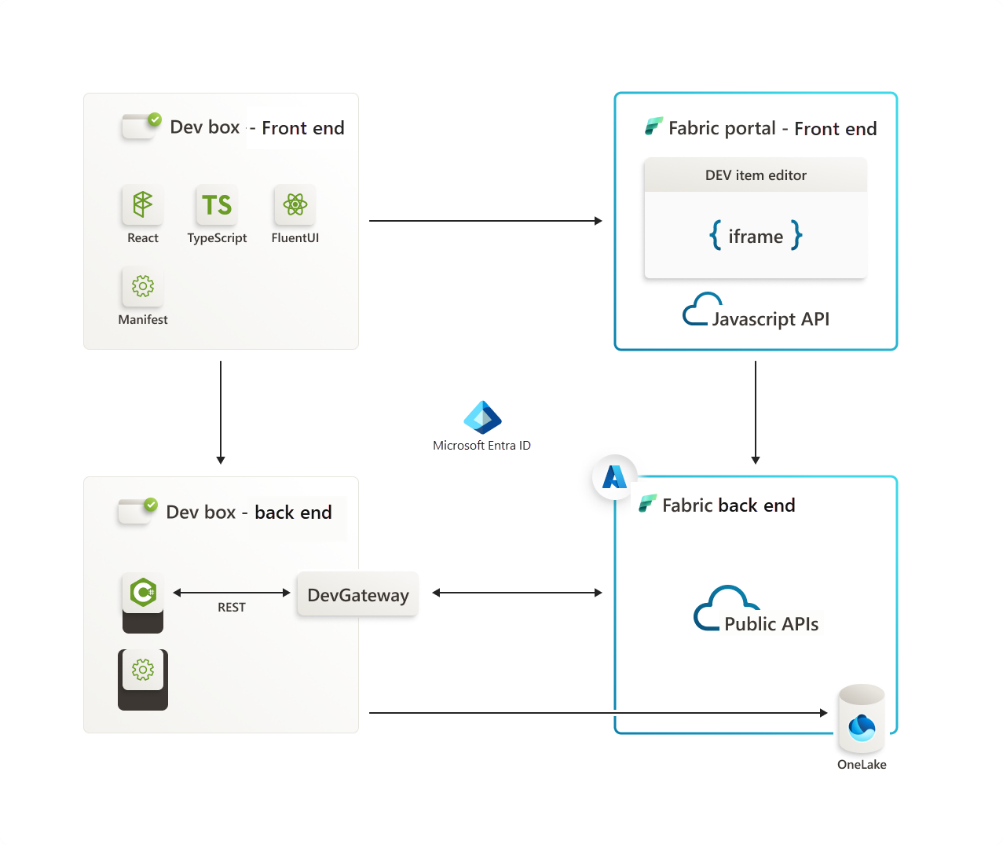
Image 2: Local Development and Testing
The diagram illustrates the architecture of a development and testing environment for Microsoft Fabric:
• Dev Box - Front End: Built with React, TypeScript, and FluentUI. It interacts with the front end of the Fabric Portal.
• Fabric Portal - Front End: Features an item editor using an iFrame and communicates via a JavaScript API.
• Dev Box - Back End: Uses REST and connects to the Fabric back end through the DevGateway.
• Fabric Back End: Provides public APIs and connects to OneLake for data storage.
• Microsoft Entra ID: Manages authentication across all components.
The flow includes front-end interactions for editing and creating items, with back-end communications managed via REST and the DevGateway.
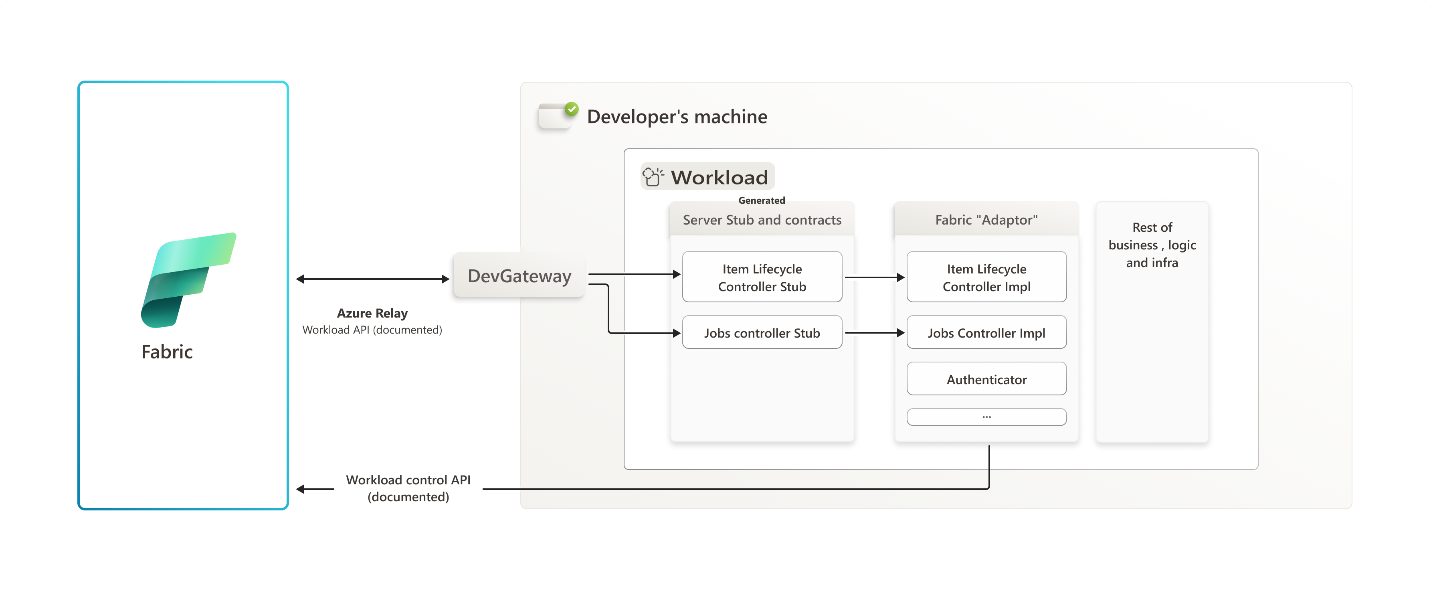
Image 3: Local Development and Testing
Image 3 illustrates the interaction between a developer's machine and Microsoft Fabric for workload management:
• Developer's Machine:
o Workload: Contains server stubs and contracts, including:
■ Item Lifecycle Controller Stub
■ Jobs Controller Stub
o Fabric "Adaptor": Implements controllers and includes:
■ Item Lifecycle Controller Implementation
■ Jobs Controller Implementation
■ Authenticator
o The machine handles the rest of the business logic and infrastructure.
• DevGateway: Acts as an intermediary, connecting the developer's machine to Fabric via Azure Relay.
• Fabric: Communicates with the developer's machine through documented Workload APIs.
The diagram shows how the developer's machine uses stubs and implementations to control and manage workloads via the DevGateway, with all communications routed through the Azure Relay to Fabric.
Production Deployment
When deploying your workload into a production environment, especially one that operates on a remote server with internet access, it’s essential to ensure that both the client and backend components are configured correctly and securely. Below are the critical steps and configurations required for a successful production deployment.
1. Workload Client Code (Frontend)
• Deployment as Cloud Service: Deploy the client code as a cloud service, typically embedded as an iFrame within the Fabric UI.
• Domain Configuration: Ensure that the domain is correctly set up using the verified domain structure, as per Microsoft Entra ID guidelines. Avoid using *.onmicrosoft subdomains.
2. Workload Backend
• Configuration: Ensure the backend server is correctly configured and can handle the expected load. This includes setting up the backend endpoint URL within the CloudServiceConfiguration section of your workload's manifest.
• Security: Implement secure communication protocols (e.g., HTTPS) and integrate authentication using Azure Active Directory (AAD)
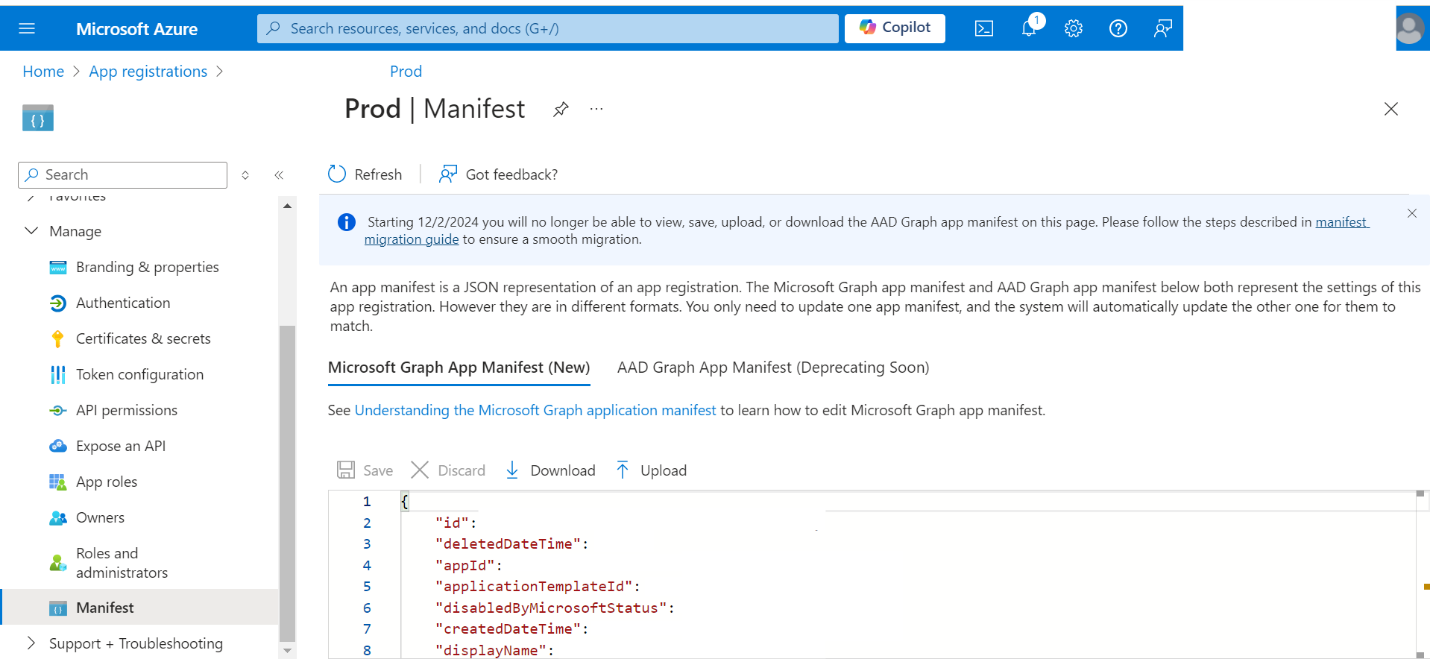
Image 4 : Manifest Configuration
3. AAD App Resource ID Setup
The AAD App Resource ID should be structured as follows:
This ID ensures that the resource is properly identified and secured within your production environment.
4. Configuring the Backend Endpoint
In the CloudServiceConfiguration section of your workload's manifest, add the backend URL and name it "Workload":
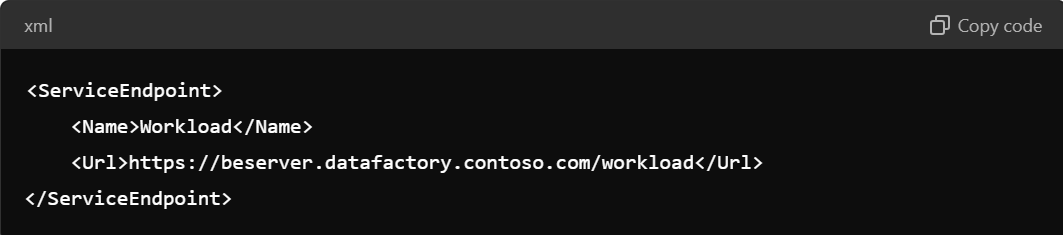
Image 5: Backend Endpoint Manifest Configuration
5. Configuring the Frontend Endpoint
Similarly, add the frontend URL to the CloudServiceConfiguration and name it "Frontend":
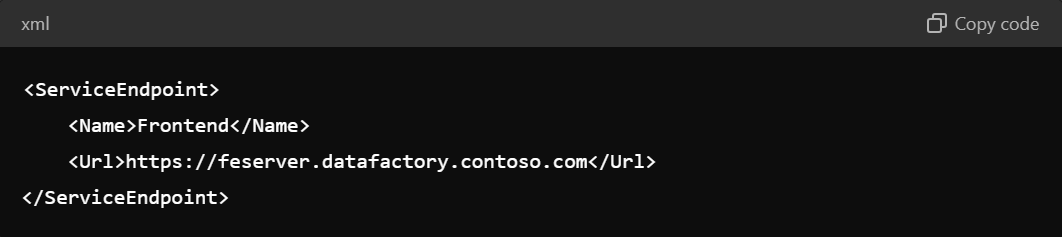
Image 6: Frontend Endpoint Manifest Configuration
6. Microsoft Entra ID Configuration
• Redirect URI: Ensure that the Redirect URI points to your FE URL appended with /close.
• Application ID URI: The Application ID URI should match the verified domain configured in your production environment.
7. Backend Configuration in appsettings.json
Configure your appsettings.json file with the following:
• PublisherTenantId: The tenant ID of the publisher.
• ClientId: The application ID found in AAD.
• ClientSecret: The client secret created during AAD app configuration.
• Audience: The ID URI configured in the AAD app.
8. Frontend Configuration
Set the backend URL in your frontend configuration file (e.g., .env.test):

Image 7: Frontend Configuration
9. Domain Mapping
Ensure that both FE and BE URLs are mapped correctly to their respective custom domains in Azure.
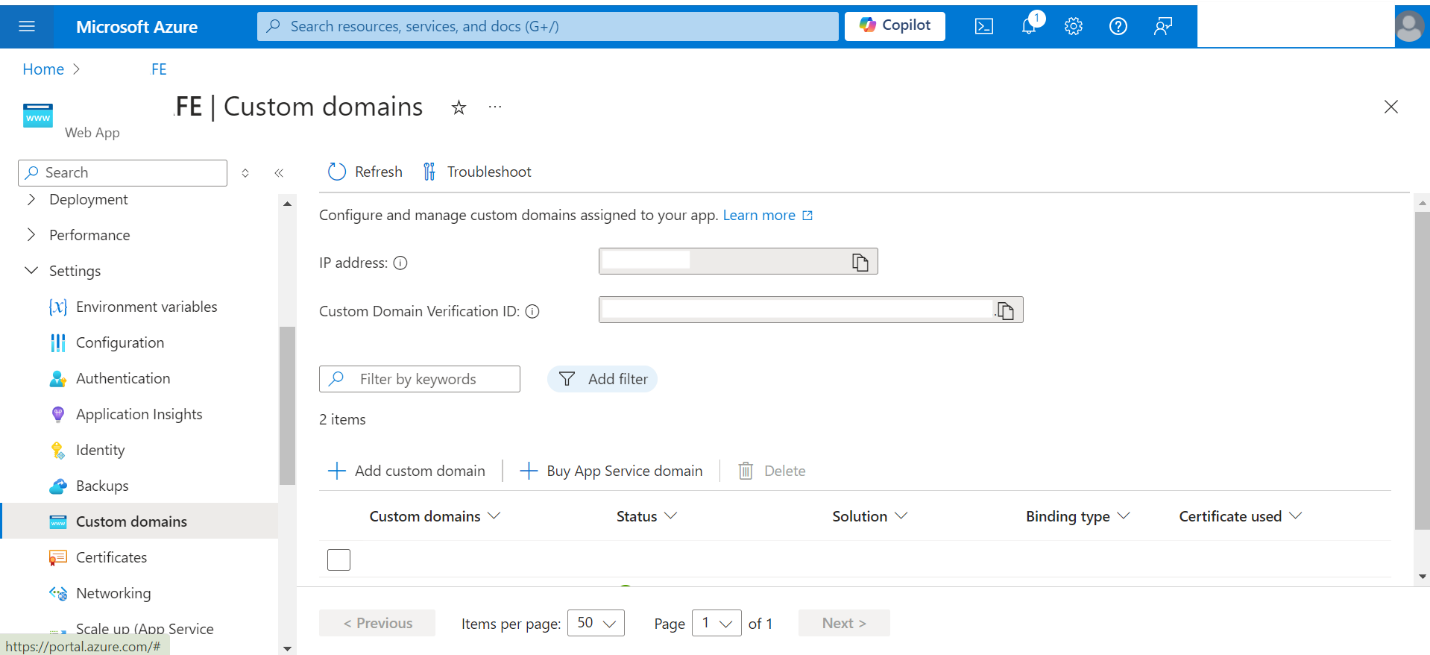
Image 8: Custom Domain Frontend Configuration
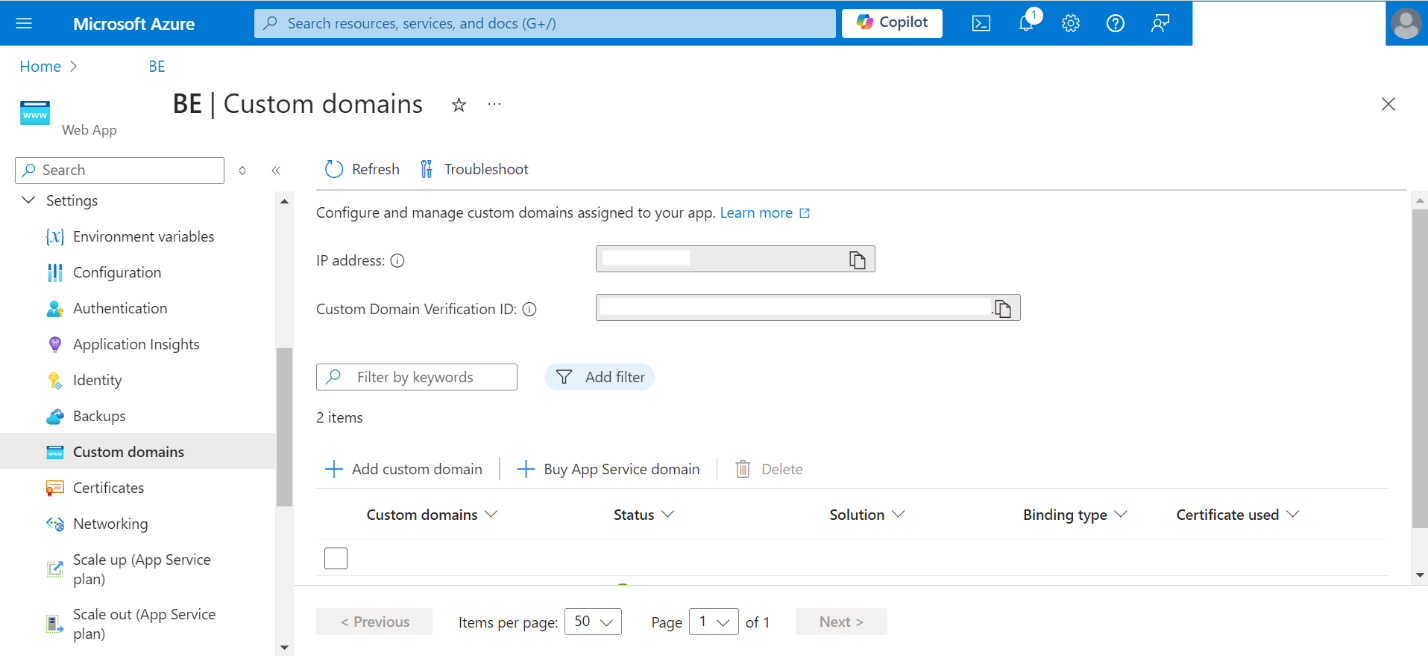
Image 9: Custom Domain Backend Configuration
As we can see in the above Image 8 and 9 custom domains are configured for both Frontend (FE) and Backend (BE) and we must make sure IP Address, Custom Domain Verification ID along with custom domain is configured.
10. CORS Configuration
Update the CORS settings in your Azure web app to allow communication between your FE and BE components. This ensures smooth interaction without cross-origin issues.
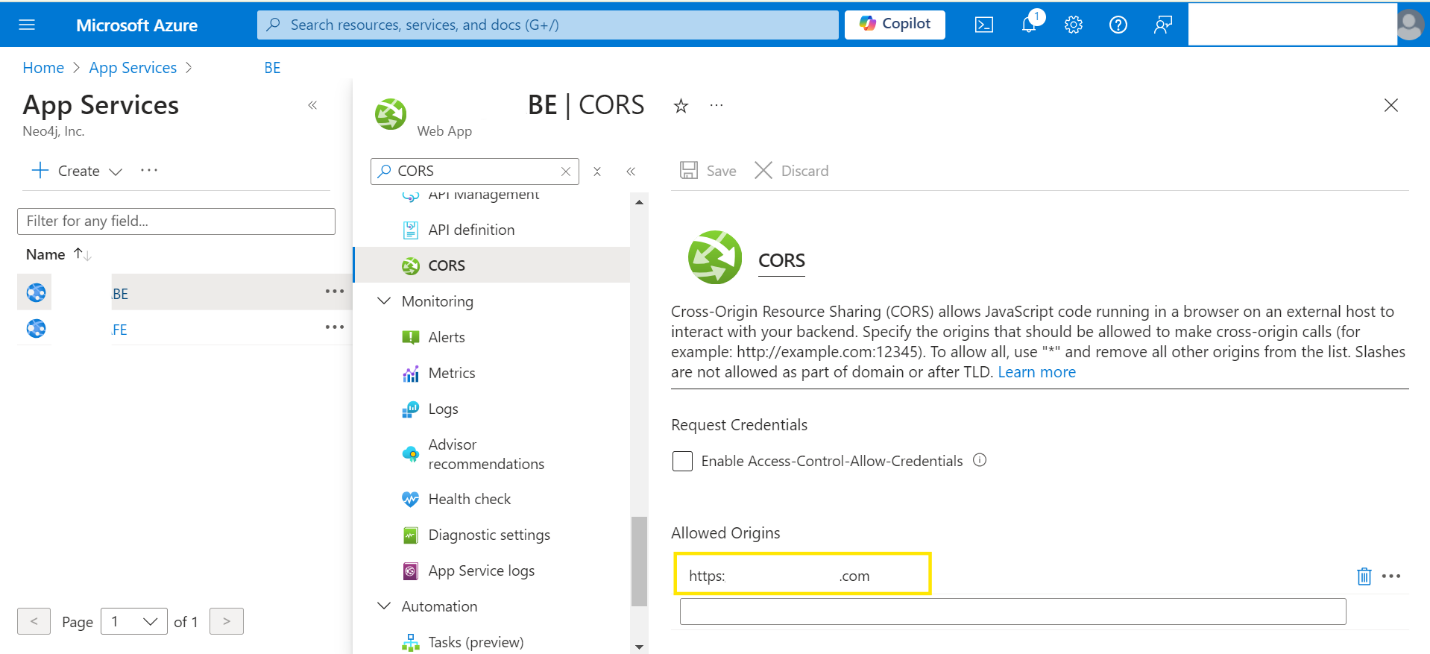
Image 10: CORS Backend (BE) Configuration
As shown in Image 10 we have configured the CORS Backend Web App
Frequently Asked Questions
1. Can we use the same capacity for both local and production environments?
Issue: Using the same capacity for both local and production environments might cause connectivity issues. The tight binding of the local environment to the shared capacity creates conflicts, preventing external users from accessing the production environment.
Resolution: To resolve this issue, we need to create two separate Fabric tenant capacities. One capacity is dedicated to the Development (Dev) environment, and the other is assigned to the Production (Prod) environment. Each capacity is accessed using its unique Capacity ID and assigned the respective names in each separate workspace. This separation ensured that the development activities would no longer impact the production environment, allowing for smoother operation and better resource management.
2. How to configure a new workspace in Microsoft Fabric Workspace?
When creating a workspace in Microsoft Fabric, select the new workspace option and ensure that you configure all mandatory settings, including the workspace name, License mode, semantic model storage format, workspace owner, and Fabric Capacity, as illustrated in Images 11 and 12.
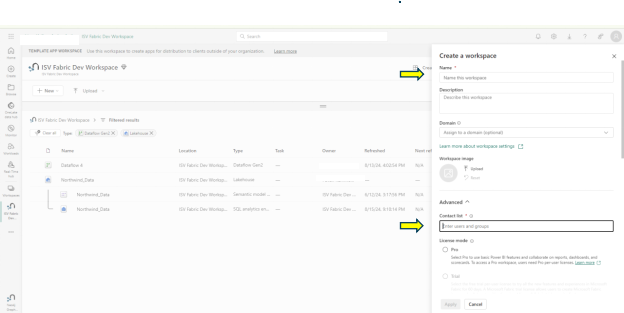
Image 11 : Configs to create workspace in Microsoft Fabric
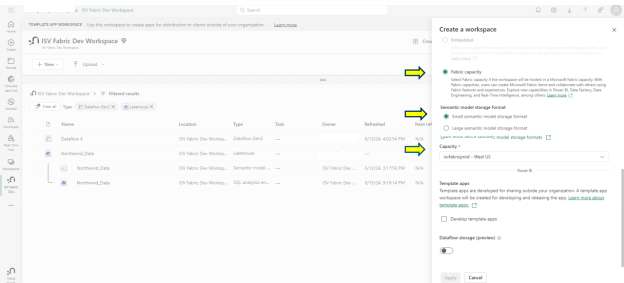
Image 12 : Configs to create workspace in Microsoft Fabric
3. How do I set up Fabric Capacity in the Azure Portal and add it to a Microsoft Fabric Workspace?
To create a workspace in Microsoft Fabric, you need to configure Fabric Capacity in Azure Portal. Start by logging into the Azure Portal, selecting the Microsoft Fabric service, and clicking "Create" as shown in Image 12. Then, enter the necessary configuration details, including the resource group, subscription details, capacity name, capacity region, capacity size, and capacity administrator, as illustrated in Image 13. Once the fabric capacity is created you can add it to the workspace configuration under advanced settings as shown in Image 14.
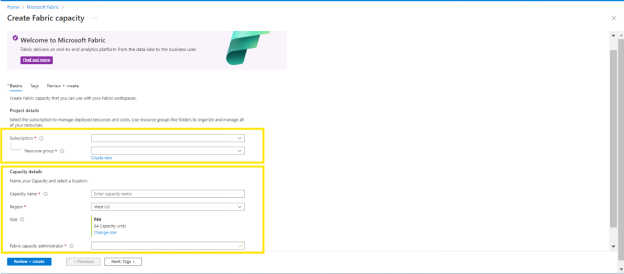
Image 13 : Create Microsoft Fabric Capacity
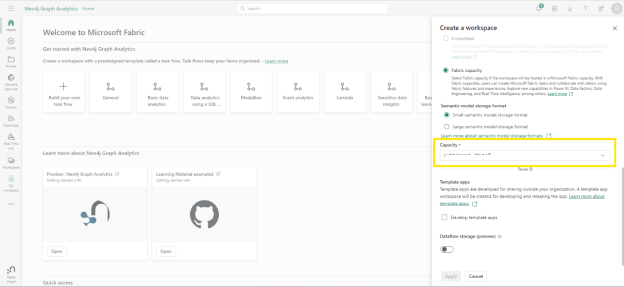
Image 14 : Enter fabric capacity in workspace
4. How do I run the Boilerplate in Visual Studio with Microsoft Fabric integrations?
• Open Visual Studio, load your project, and ensure it includes Microsoft Fabric integrations and configure the project to run in Boilerplate mode as shown in Image 15 and make sure Fabric_Extension_BE_Boilerplate is set as Startup Project as shown in Image 16
• Build and run the project to enable the application
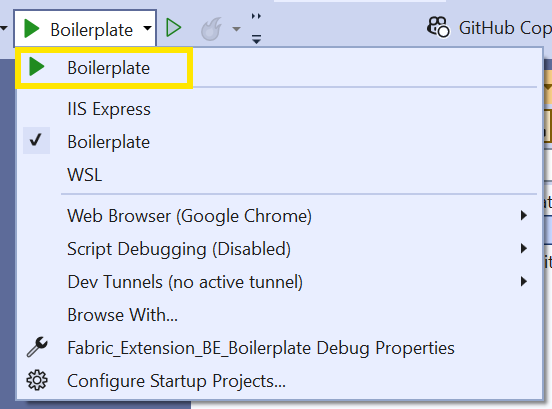
Image 15: Boilerplate option in Visual Studio
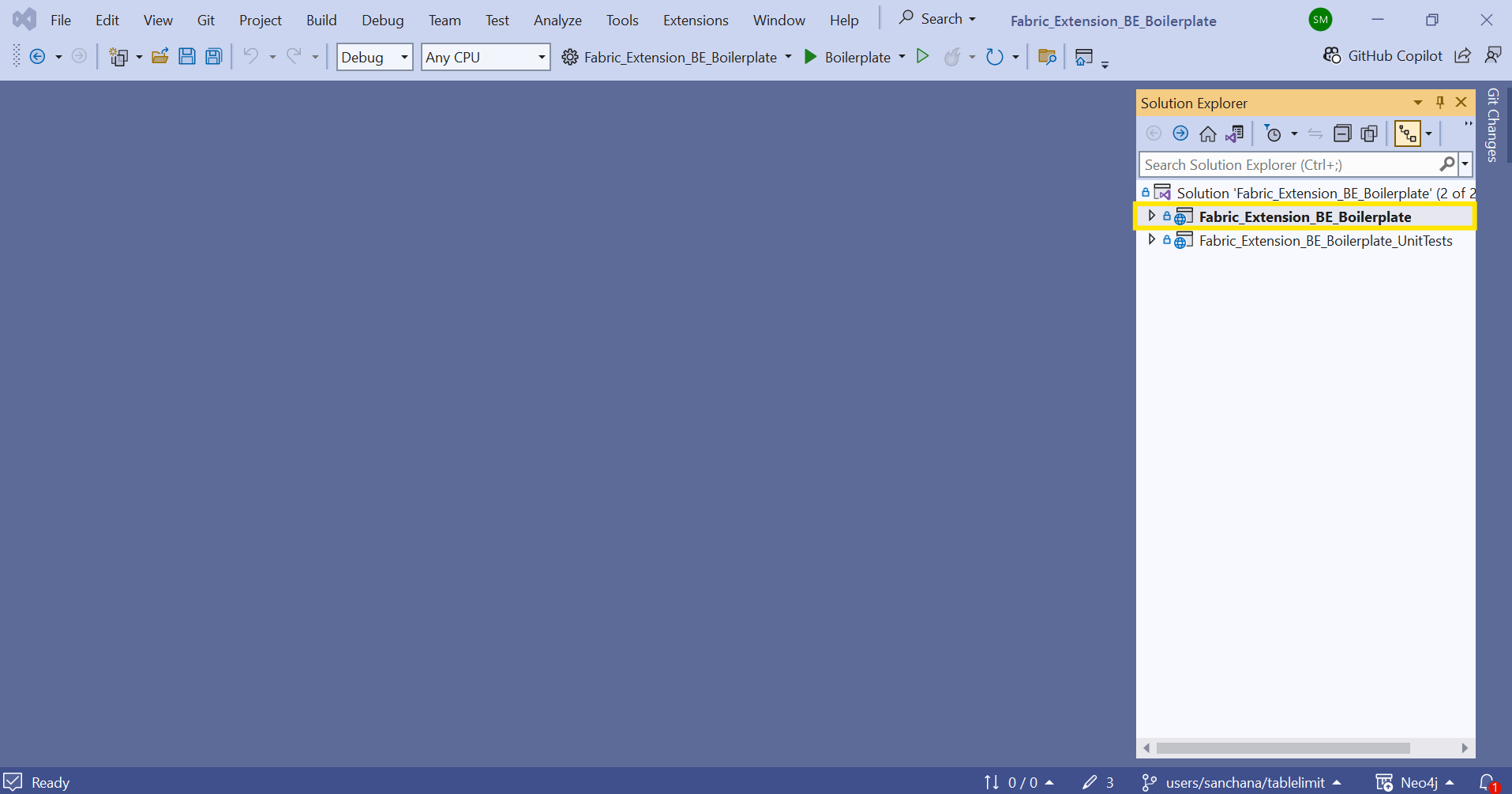
Image 16: Setting Fabric_Extension_BE_Boilerplate as Startup Project
Conclusion :
In conclusion, the Microsoft Fabric Workload Development Kit provides developers with the tools to create, deploy, and manage custom solutions within the Fabric platform, ensuring seamless integration, robust security, and efficient development across environments.
References :
• Overview of Fabric deployment pipelines - Microsoft Fabric | Microsoft Learn
• https://learn.microsoft.com/en-us/entra/identity/
• Custom Domain Mapping - Map existing custom DNS name - Azure App Service | Microsoft Learn